Setting Up the Prayer Wall
The Prayer Wall lets your congregation submit prayer requests and praise reports, pray for one another publicly, and gives your staff a moderation queue to review everything before it goes live.
Adding the Prayer Wall to a Page
The Prayer Wall isn't placed on a page automatically — you (or whoever built your site) add it wherever you want it to appear, using a shortcode in a Page Builder Text module or the block editor:
| Shortcode | What It Does |
|---|---|
[fm_prayer_wall] | The full public wall — request cards, filters, and the submission form |
[fm_prayer_form] | Just the submission form, on its own (handy for a "Get Prayer" page) |
[fm_prayer_count] | A running count, e.g. "482 prayers shared" |
[fm_prayer_wall] accepts a few optional settings if you want to override your defaults for that one page, for example [fm_prayer_wall layout="grid" per_page="12"].
If you already have an older "Get Prayer" or "Prayer Requests" page built with a different contact form, you can leave it as-is or swap it for [fm_prayer_wall] to bring submissions into this moderation queue instead of your inbox.
Prayer Settings
Go to Prayer → Settings in your dashboard to configure how the wall behaves.
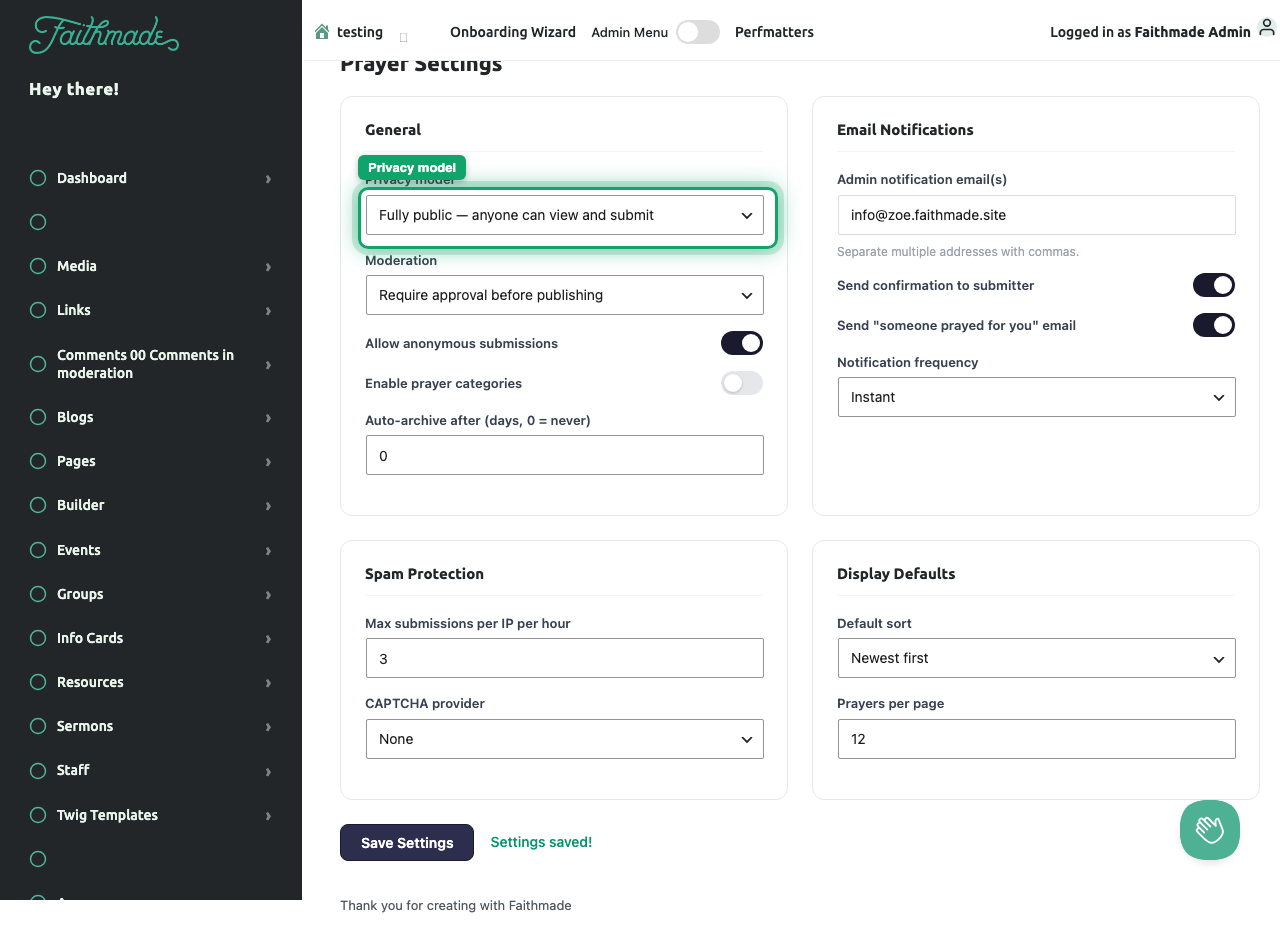
General
- Privacy model — controls who can see and submit prayers:
- Fully public — anyone can view and submit, no login required
- Login required — only signed-in members (including your church app) can view and submit
- Hybrid — the wall is public, but each submitter chooses whether their request is public or private
- Moderation — Require approval before publishing (recommended) holds every submission in Pending until a staff member approves it. Auto-approve submissions publishes them instantly.
- Allow anonymous submissions — lets someone submit without giving a name.
- Enable prayer categories — turns on category tagging for requests (e.g. Healing, Family, Grief).
- Auto-archive after (days) — automatically moves old requests to Archived so the wall doesn't fill up with stale posts. Set to
0to never auto-archive.
Email Notifications
- Admin notification email(s) — comma-separated list of staff who get notified of new submissions.
- Send confirmation to submitter — emails the person who submitted a request to let them know it was received.
- Send "someone prayed for you" email — notifies the submitter each time someone clicks "I Prayed" on their request.
- Notification frequency — Instant emails as things happen, or Daily digest to batch them into one email a day.
Spam Protection
- Max submissions per IP per hour — a simple rate limit to slow down abuse.
- CAPTCHA provider — add reCAPTCHA v2/v3 or hCaptcha if you're seeing spam submissions.
Display Defaults
- Default sort — Newest first or Most prayed, used when a page doesn't override it.
- Prayers per page — how many cards load at a time on the public wall.
Click Save Settings when you're done — changes apply immediately, no page reload needed.
Related: Moderating Prayer Requests