Moderating Prayer Requests
Every prayer request and praise report that comes in through your Prayer Wall lands in Prayer → Prayer Requests, where staff can review, respond to, and manage them.
The Prayer Requests Queue
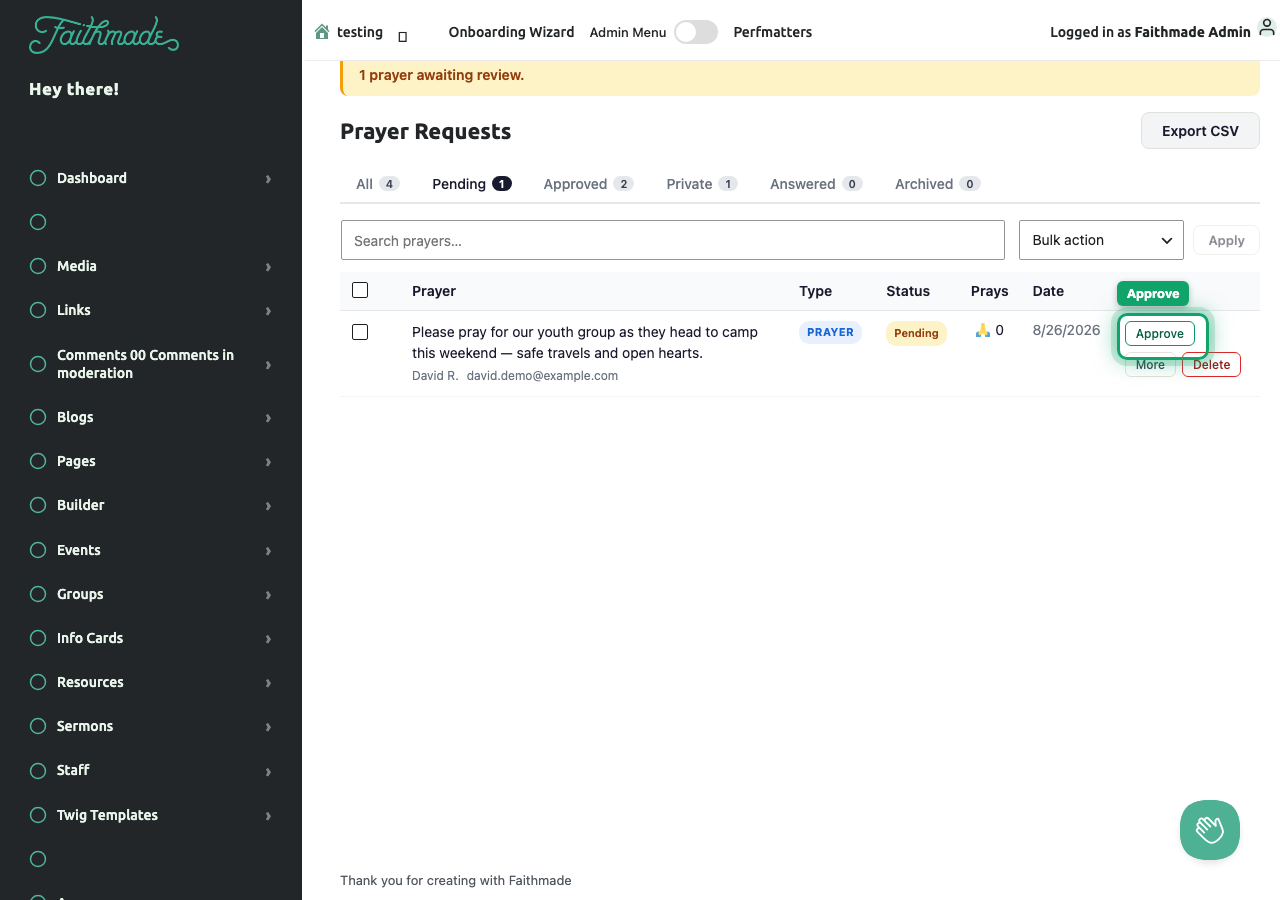
If Moderation is set to Require approval before publishing in Prayer Settings, new submissions land here as Pending and won't appear on the public wall until you act on them. A banner at the top of the screen ("1 prayer awaiting review") lets you know when something needs attention.
Use the tabs to filter the list:
| Tab | Shows |
|---|---|
| All | Every request and praise report, any status |
| Pending | Awaiting your approval |
| Approved | Live on the public wall |
| Private | Submitted for staff eyes only (not shown publicly) |
| Answered | Marked as answered, with a response sent |
| Archived | Hidden from the wall but kept on record |
The search box filters by content or submitter name, and Bulk action lets you approve, delete, or archive several requests at once — check the boxes on the left, choose an action, and click Apply.
Reviewing a Request
Click More on any row to expand it and see the full request text plus additional actions:
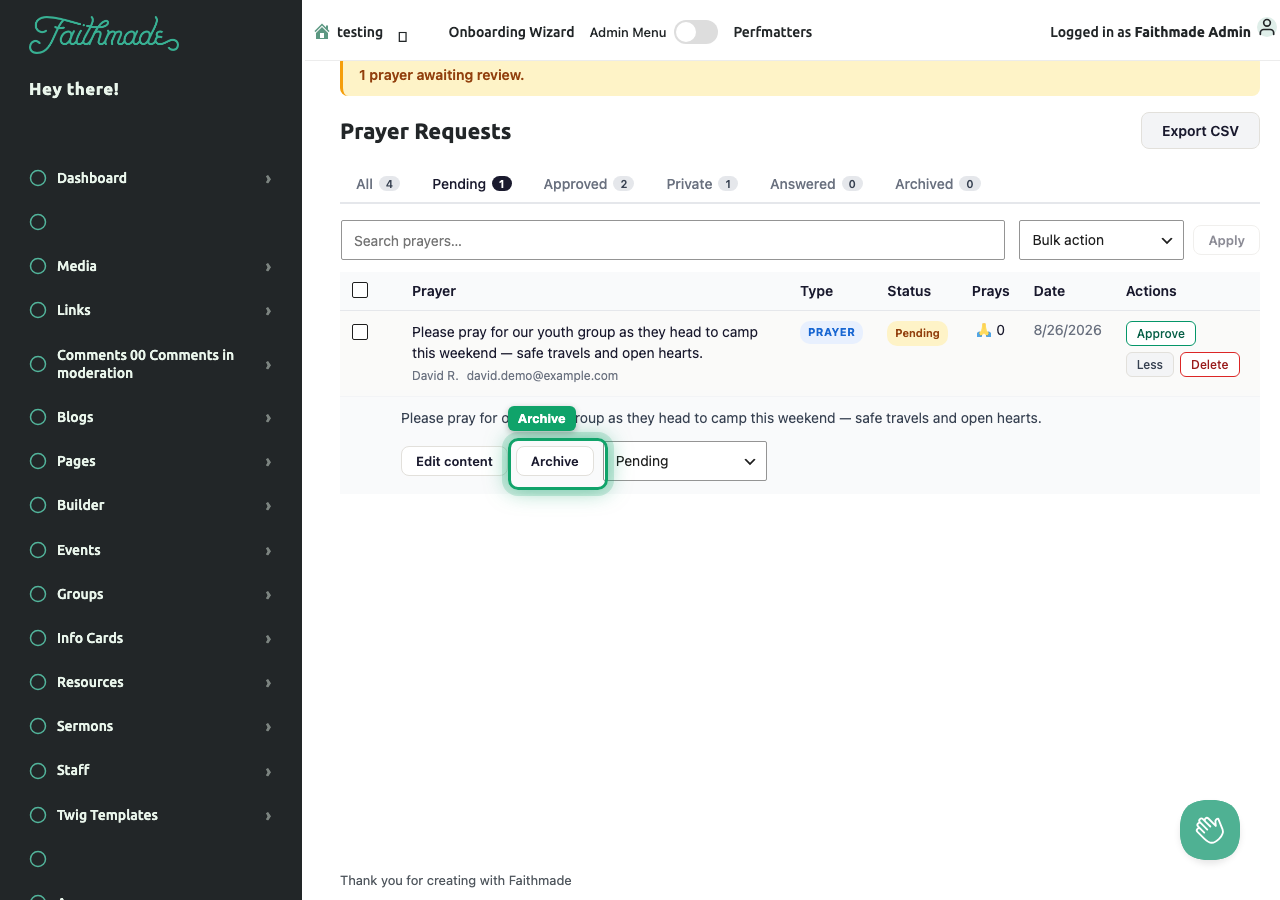
- Edit content — clean up a submission (fix a typo, remove something inappropriate) before it goes live
- Archive — pull it off the public wall without deleting it; archived requests can be Restored later
- Change status — jump straight to any status (Pending, Approved, Private, Answered, Archived) from the dropdown
Row Actions
Right in the table, without expanding the row:
- Approve — publishes a pending request to the public wall (only shown while it's Pending)
- Answer — opens a compose box to email the submitter directly and mark the request Answered. If they didn't leave an email address, you can still click Mark as Answered to record it without sending anything.
- Delete — permanently removes the request
Answering a request emails the person who submitted it — a great way to follow up personally on something your church prayed for.
Exporting Requests
Click Export CSV in the top-right corner to download every prayer request as a spreadsheet — useful for pastoral care records or reviewing trends in what your congregation is bringing to God.
Related: Setting Up the Prayer Wall